This post is week 5 of 8 in the 8 Weeks of Summer Blog Challenge for educators from hotlunchtray.com. Find out more by clicking
here.

Most of us have been there before as either the teacher or the student. It's the first week of school, and out comes the predictable prompt: "What experiences did you have during the summer?" Now don't get me wrong, it's a decent prompt for building rapport between the teacher and their students, but there has to be a way we can shake it up a little bit, right?
Think about what your students have been doing most of this summer... They've been on social media, sharing (sometimes oversharing) almost every day. Selfies at the ball park, a victory on Fortnite, hanging by the pool, etc... All of this leading to the question, "How do we get them to connect their life experiences to their classroom experiences?" My answer, let them share.
Social Media of THEIR Choice:
Instead of that writing prompt the first week of school, why not set up a social media prompt. "With the platform of your choice, share an experience you had over the summer and include what you learned from the experience." Then create a hashtag for it... or better yet, let the class create the hashtag for it. SnapChat, Instagram, Facebook, Twitter, the platform doesn't matter. Have them get out their phone and share not only something they did, but what they LEARNED from the experience. Remember social media is only for students ages 13 and over, check out other options below.
or
Flipgrid Sharing:
If you are timid of the social media route, then set up a Flipgrid for your class and ask the same prompt. Flipgrid will keep the videos private within your class, but students can still respond to each other.
or
Shared Videos via QR Code:
Allow students to use classroom or personal devices to record a video of themselves answering the prompt. Save the videos to a cloud drive, such as Google Drive, then take that link and create a qr code. There are many qr code generators out there, just Google qr generator and you will be good to go. Print and post the qr codes in your classroom or in the hallway of your school.
Why do this?
There are several benefits to this activity:
- Student Voice: You are starting the year off by asking them to share something that THEY want to share. They have control over what they share with the class.
- Digital Citizenship: It's important for students to learn to post and respond appropriately on social media.
- Sharing their Learning: If students are sharing their learning, they are taking ownership in it. Taking these steps will encourage them to begin to share what they have learned, without a teacher directing them to.
The Real Challenge:
Keep the sharing going all year long. Frequently ask them to pick something from the class that they learned about, and make a post about it in what ever platform you desire. Even if it is just on a Padlet Wall or in Google Classroom, keep them sharing what they learn.
Imagine months later, your students are at the dinner table. When the parent asks the inevitable "What did you learn in school today?" Their response, "I posted it on Instagram for you to see!"


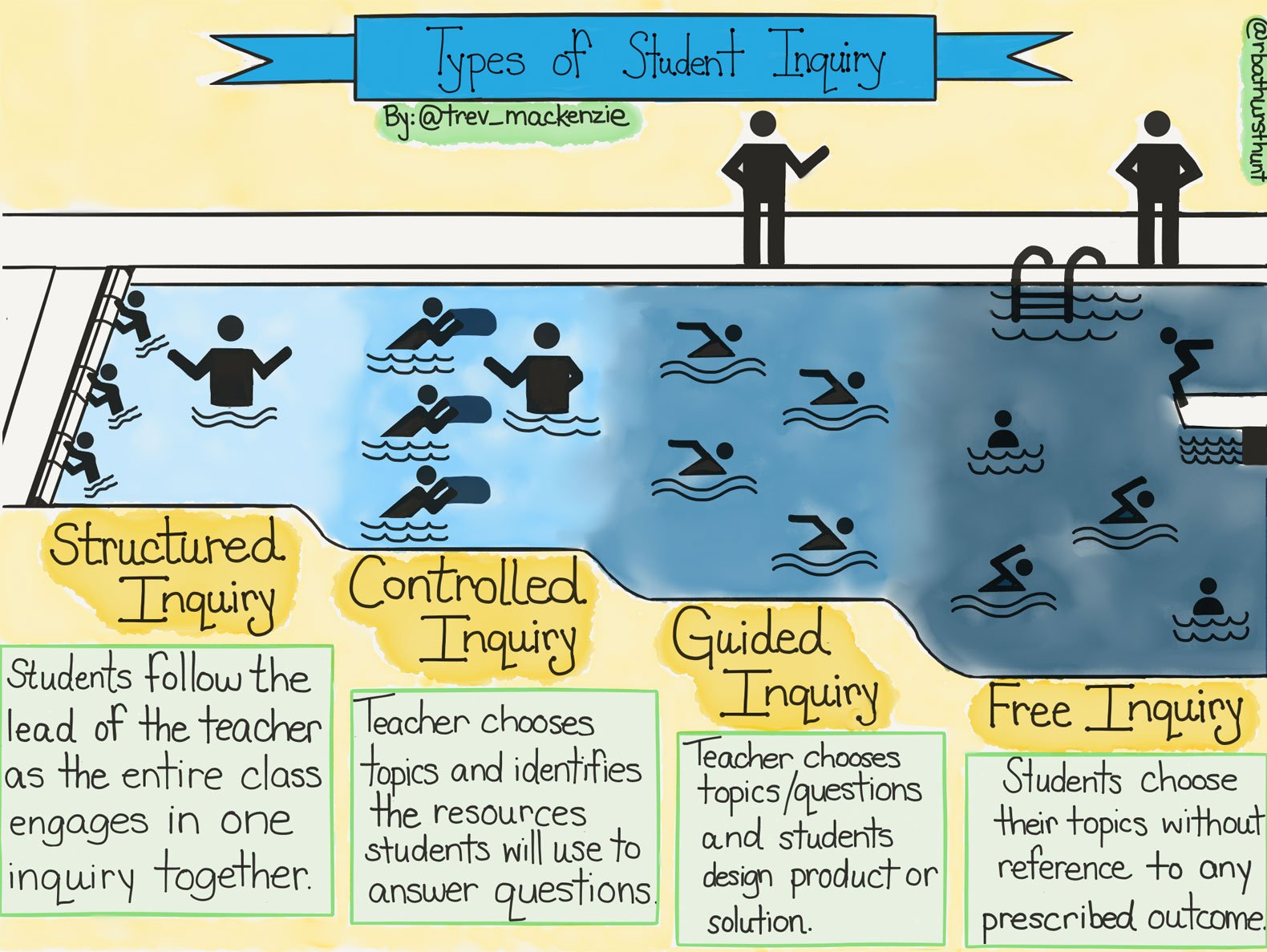

 As students toward Free Inquiry, the Genius Hour website give students and teachers a structure on how to be successful during a self driven process. The Genius Hour practice is based off of what Google implements with their development team. Giving their employees time to work on self-interest projects that have potential to improve the company, has allowed Google to create many of their popular products. What Genius Hour attempts to do is bring this ideology into your classroom. Giving students the option to choose projects that will have potential to improve their understanding of a concept or pass through a competency.
 Time management and prioritizing are two huge challenges for students (and some of us educators as well). Schools and teachers use agendas, messaging apps like Remind, Monday Folders; the list goes on and on. We know students need a variety of reminders to keep them on track, but what about tools that teach them these responsibilities for themselves. Is there a tool that already exists that teachers can show students how to become more responsible and learn how to prioritize? I believe there is: The Google Tasks Chrome Extension!

